It will not switch on
Do not take the phone or laptop apart. Tell us what happens when you try to power it on before sending it.

BEFORE YOU RESET
Back up what matters, remove account locks and follow the right reset steps for your phone, tablet, watch or laptop.
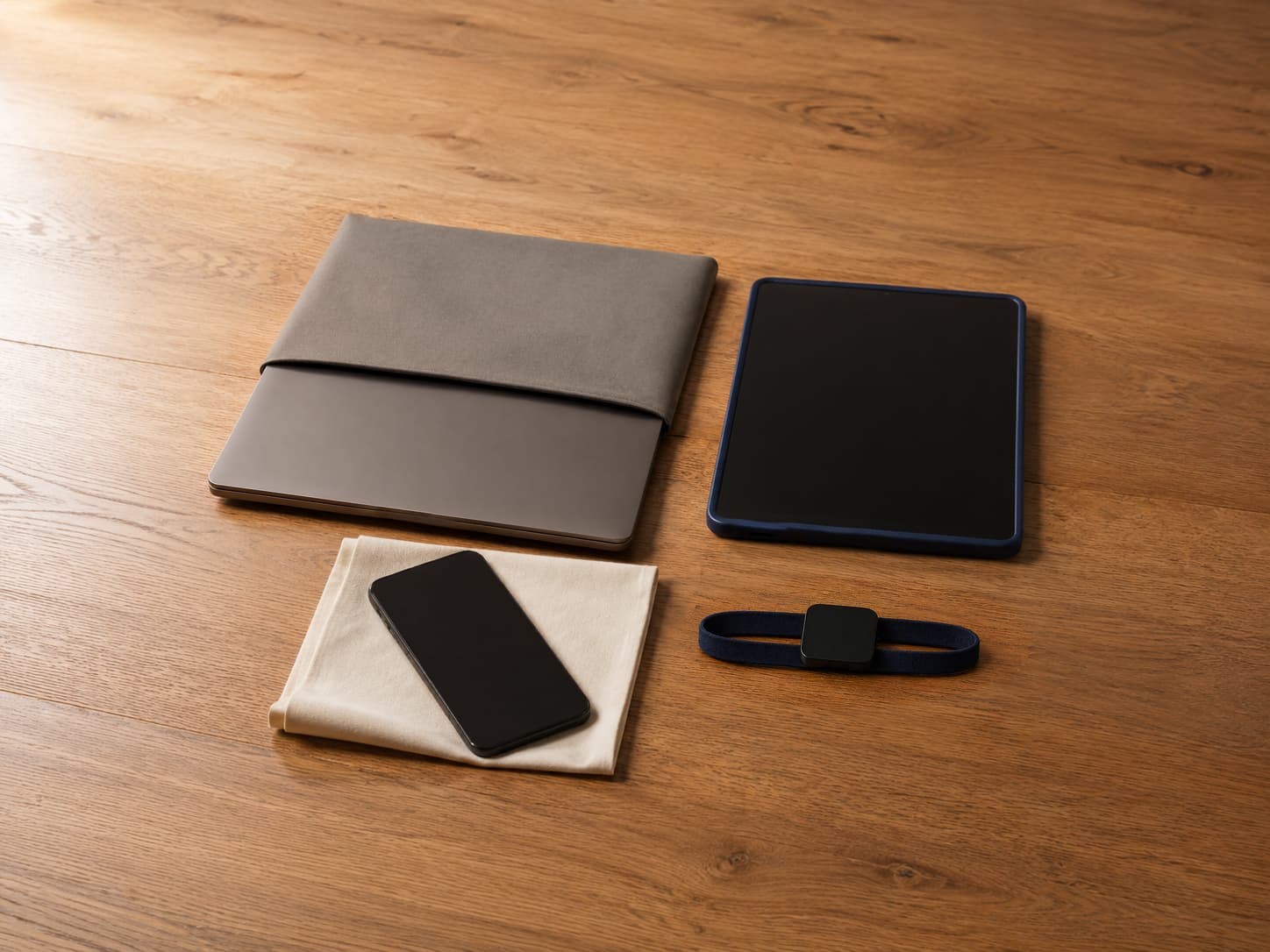
THE FOUR ESSENTIALS
The menu may change from one phone to another, but the safe order does not. Save first and only erase when you are ready to let the device go.
Back up photos, contacts, files and anything needed to reach your accounts later.
Deal with Apple, Google, Samsung, Microsoft and any work or school management.
Use the official reset option for the phone, tablet, watch or laptop in front of you.
Keep your SIM, memory card and any charger or accessory we haven't asked for.

BEFORE ANYTHING DISAPPEARS
A reset cannot put back a photo, a login code or a file you forgot to save. Move what you need first, then keep personal cards and account details with you.
PHONES AND TABLETS
Pick the closest match. We have kept each guide short enough to follow while the device is still in your hands.
APPLE PHONE OR TABLET
Save your photos, contacts, files and anything else you want on your next device. Move authenticator access before you erase.
Follow the current sign-out or erase prompts in Settings. Do not delete iCloud photos one by one while the phone or tablet is still signed in.
Go to Settings, General, Transfer or Reset, then Erase All Content and Settings. If an eSIM is present, choose to erase it when the service is leaving with you.
Wait for the Hello screen, remove any physical SIM and do not sign in again. Find My and Activation Lock should be off after the authorised erase finishes.
SAMSUNG PHONE OR TABLET
Use Smart Switch, Google backup, Samsung Cloud or your own computer for the photos, contacts and files you want to keep.
Open Settings, Accounts and backup, then Manage accounts. Remove Google, Samsung and any work or school account connected to the device.
Remove the physical SIM and memory card. Check with your network before deleting or transferring an eSIM.
Open General management, Reset, then Factory data reset. Menu names can vary slightly, so use Samsung's instructions for the exact model if yours looks different.
PIXEL OR OTHER ANDROID
Check that photos, contacts, messages and app information you need are safely stored somewhere else.
Remove the Google Account and any manufacturer, work or school account. This helps prevent Factory Reset Protection from stopping the next setup.
Keep the SIM and memory card. Move authenticator access, payment cards and any eSIM service you still need.
On a Pixel, open Settings, System, Reset options, then Erase all data. Other Android phones may use different words, so check the maker's current instructions.
WATCHES AND LAPTOPS
A watch may need to be unpaired, while a laptop needs the reset route that matches its operating system. Choose the guide that fits.
APPLE SMART WATCH
Place the Apple Watch and its paired iPhone close to each other and check that the information you need has synced.
Open the Watch app, tap All Watches, choose the information button beside the watch, then tap Unpair Apple Watch.
For a cellular watch, remove the mobile plan during unpairing and speak to your network if the plan also needs cancelling.
The authorised unpairing process removes Activation Lock. If you no longer have the iPhone, use Apple's official account-removal steps instead.
GALAXY, PIXEL OR WEAR OS
Make sure health information, settings and anything else you need has synced with the watch's companion app.
Take off payment cards and deal with any cellular plan. Use the companion app to disconnect the watch when that option is available.
On Galaxy Watch this is normally under Settings and General. Pixel Watch uses Settings, System, then Disconnect and reset. Menus vary by model.
Do not pair it again. Check the companion app and your manufacturer account to make sure the old watch is no longer connected.
APPLE LAPTOP
Use Time Machine or another trusted backup and move any licence, recovery or authentication information you still need.
A Mac with Apple silicon, or a T2 Security Chip using macOS Monterey or later, can normally use Erase All Content and Settings.
For a compatible Mac, open System Settings, General, Transfer or Reset. An older Intel Mac needs Apple's macOS Recovery and Disk Utility instructions.
When the Mac reaches its Hello or setup screen, do not enter your details again. Shut it down ready for inspection.
WINDOWS LAPTOP
Back up the files you need. If BitLocker is on, make sure you can reach the recovery key before starting the reset.
If the laptop belongs to a business, school or organisation, ask its administrator to remove management and confirm the required data-erasure standard.
Open Settings, System, Recovery, then Reset this PC. Choose Remove everything and turn on the clean-data option when the laptop is being sold.
Let the reset finish without interrupting it. When Windows reaches its first setup screen, power the laptop down and do not sign in again.
WHEN THE USUAL STEPS DO NOT WORK
A broken screen, forgotten account or managed laptop needs a different next step. Tell us what is stopping you before the device leaves your hands.
Do not take the phone or laptop apart. Tell us what happens when you try to power it on before sending it.
Use Apple, Google, Samsung or Microsoft account recovery. We will never ask you to put a password in the parcel.
Ask the organisation to remove mobile management, account ownership and any data-erasure requirement first.
Do not post a device with a swollen, leaking, very hot or badly damaged battery. Stop using it and contact us.

PREPARATION FAQS
Short answers about backups, account locks, SIM cards and devices that will not switch on.
Continue to How to PostYes. A factory reset removes information stored on the device. Save any photos, contacts, files, messages and account-recovery access you want to keep before you begin.
No. Deleting items one by one is not the same as using the device maker's full erase or factory-reset process. Back up first, remove the linked accounts and then reset through Settings.
Remove the physical SIM and any memory card before posting. An eSIM needs to be transferred, cancelled or erased using the options provided by the phone and your network. Do not assume it has disappeared without checking.
Do not send your password. Use the official Apple, Google, Samsung or Microsoft account tools to remove the device or recover access. If the old account is still requested during setup, contact us before posting.
A non-working device may still be eligible, but you may not be able to complete a normal reset. Remove linked accounts remotely where the manufacturer allows it and contact us before sending anything that may still contain personal information.
No. Never put an Apple, Google, Samsung or Microsoft password, screen PIN, BitLocker key or recovery code inside the parcel. If access is needed, use the official recovery process while the device is still with you.